
Adding Funds
This guide will show you how to add funds to your NuxtCloud account.
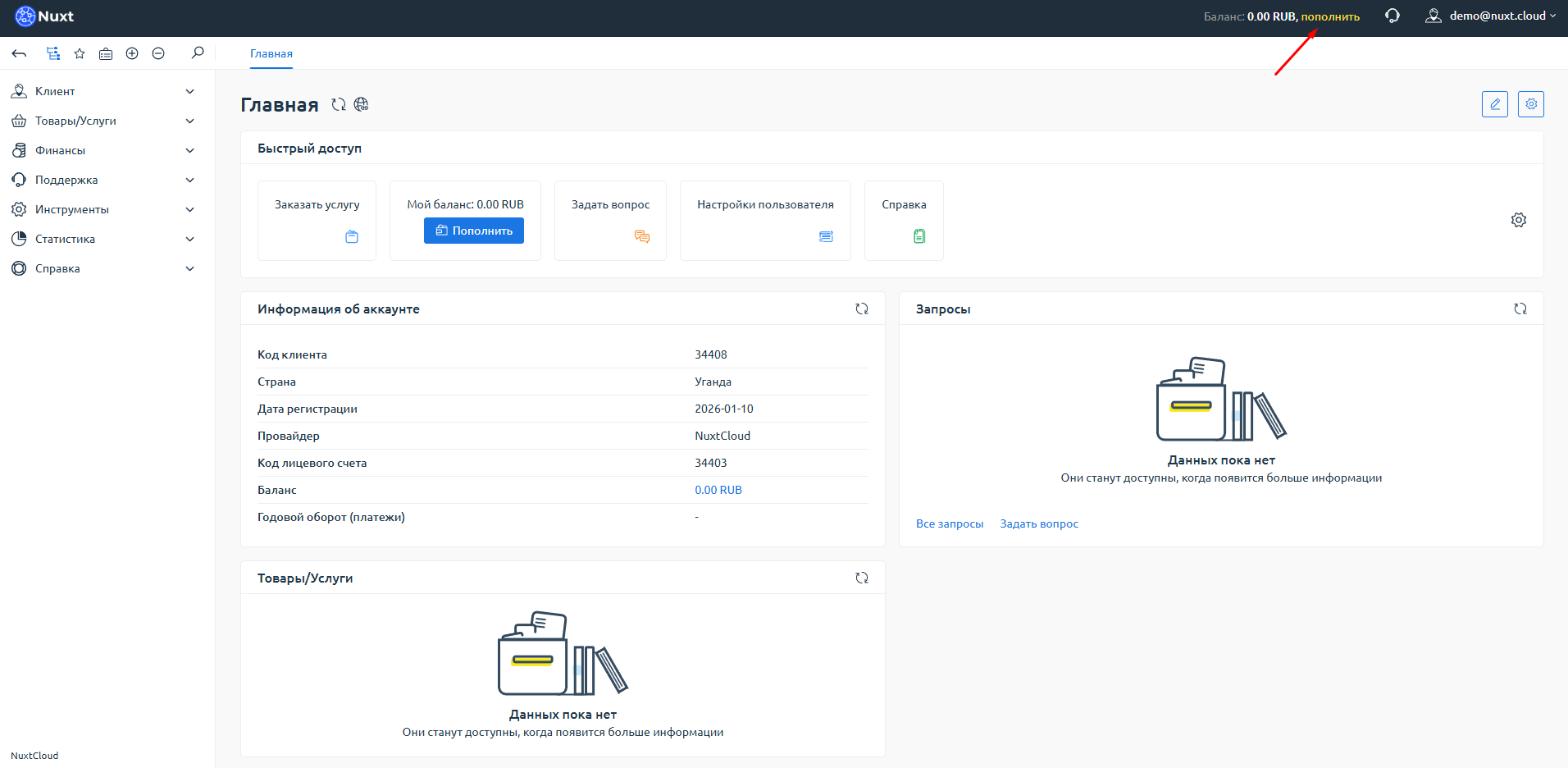
Step 1: Click the "Top Up" button
After logging into your account, your current balance is displayed in the top right corner. Next to it is a yellow "Top Up" button — click on it.
Step 2: Choose a payment method
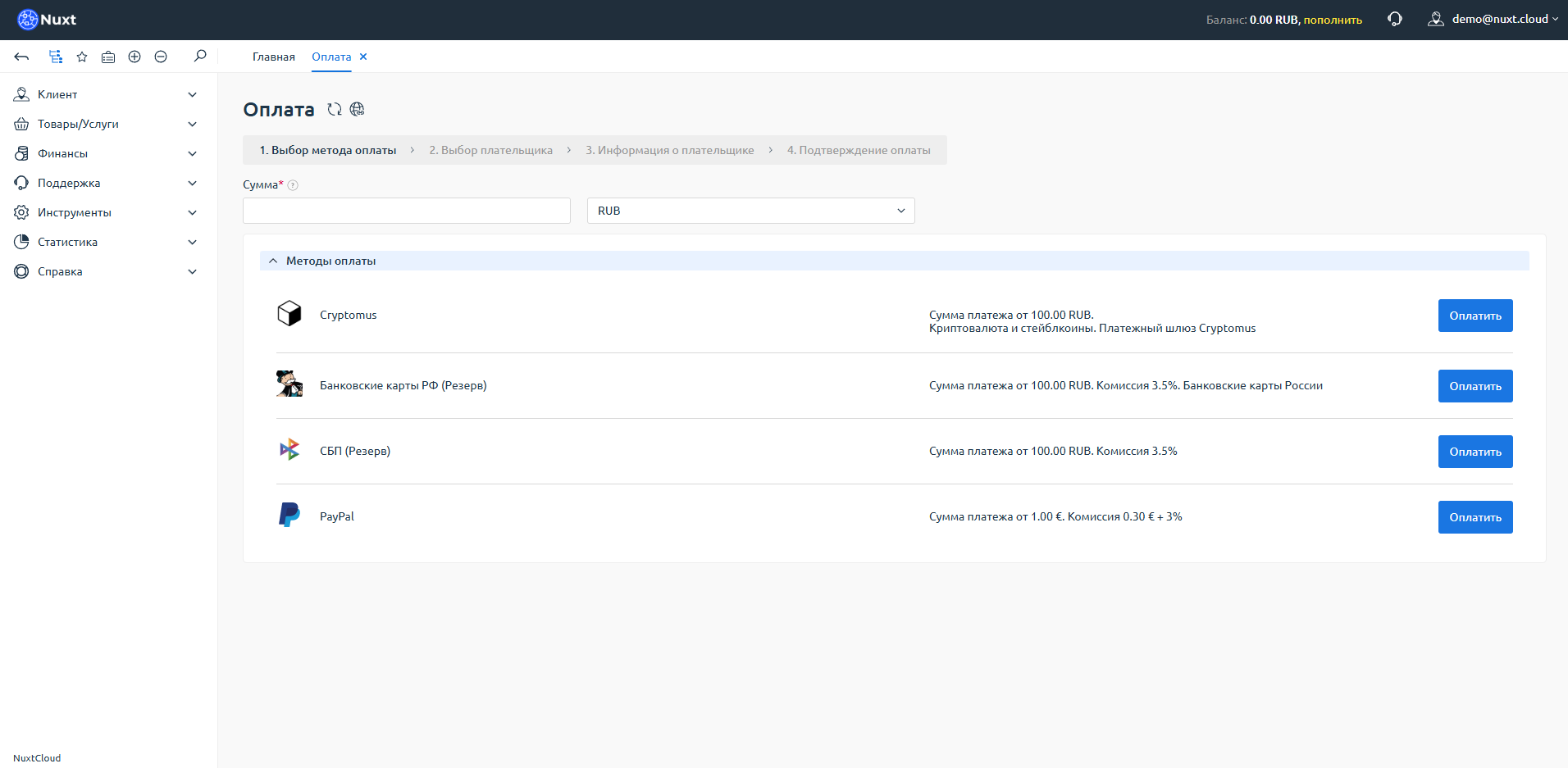
You will be taken to the "Payment" section, where various payment methods are available.
Step 3: Enter the amount and pay
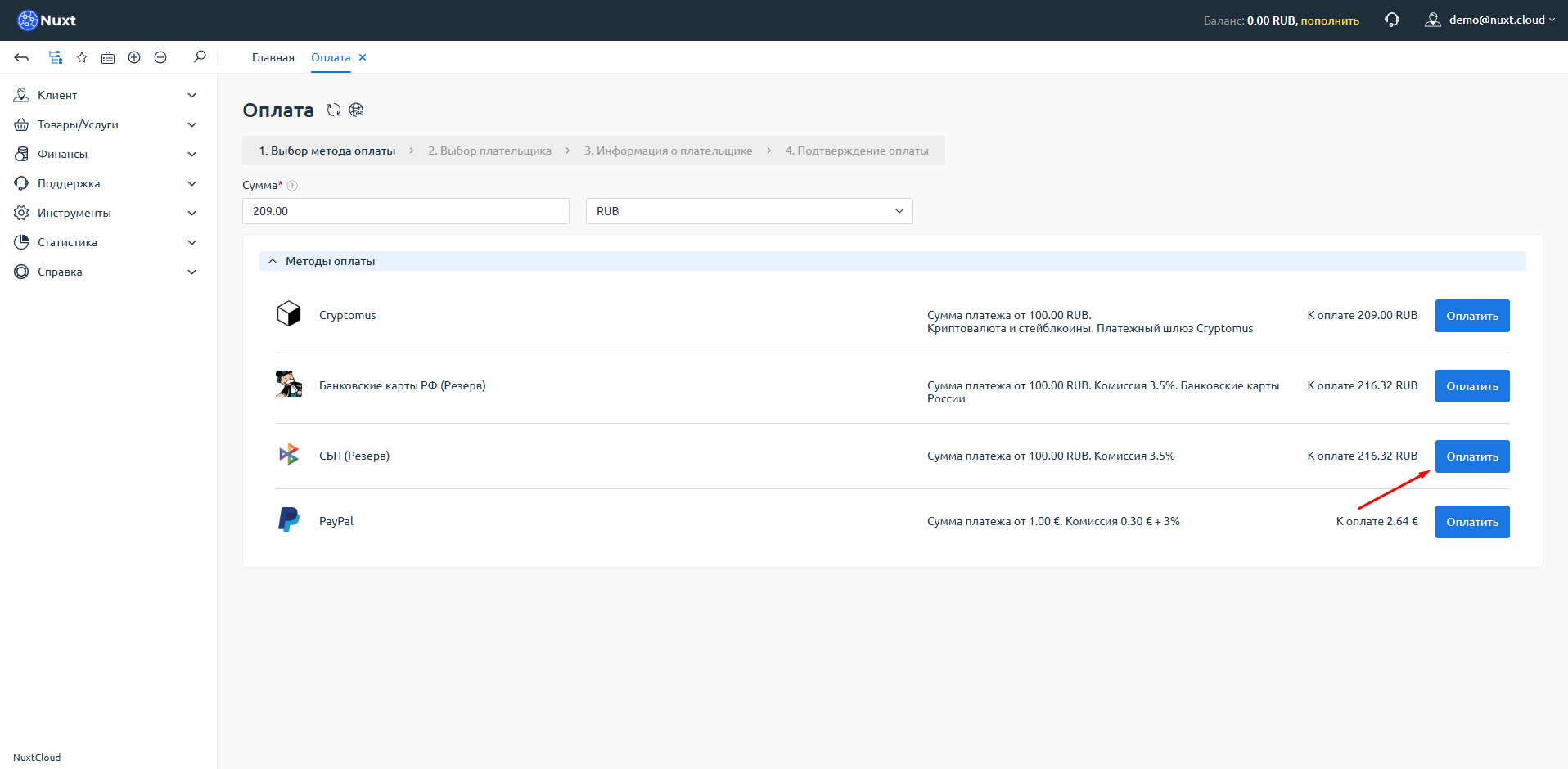
- In the "Amount" field, enter the desired amount
- Click the "Pay" button next to your preferred payment method
In this example, SBP (Russian fast payment system) is selected.
Step 4: Complete the payment
After clicking the button, you will be redirected to the payment system page.
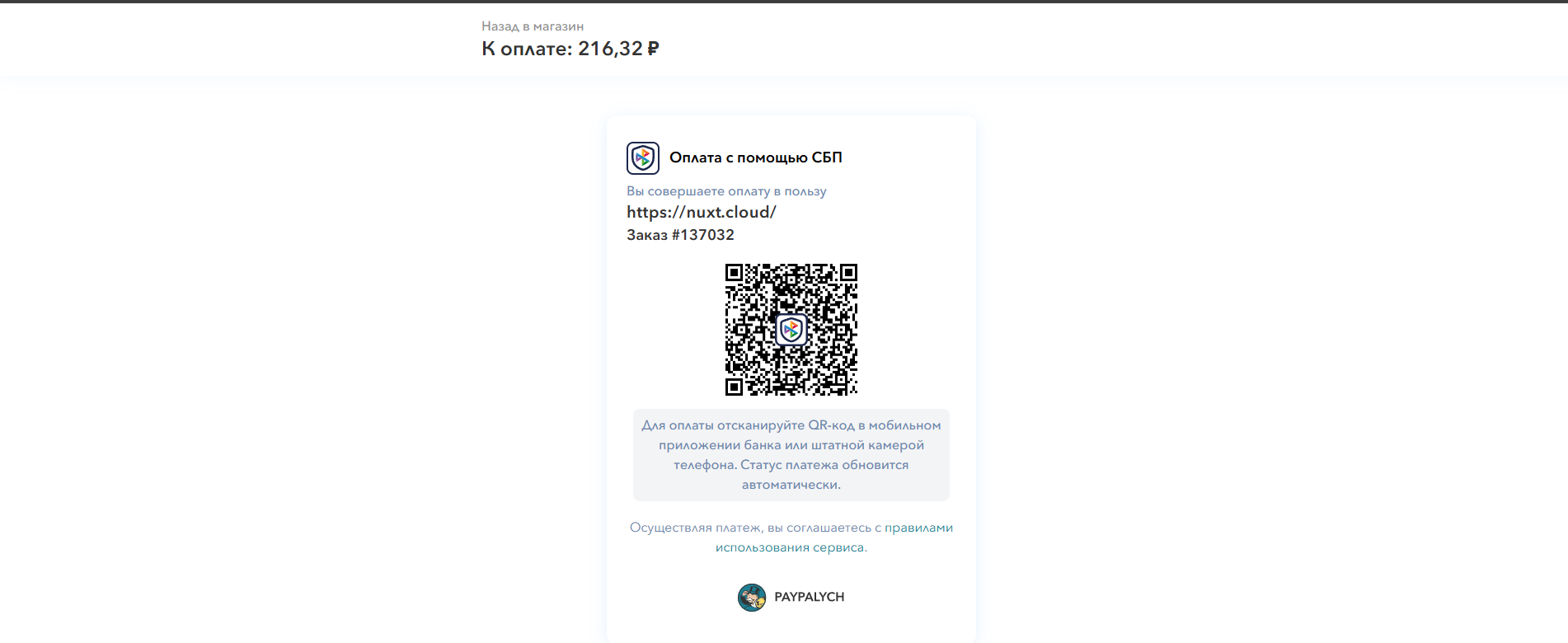
For SBP — scan the QR code and confirm the payment in your bank app.
Please note
- Auto-payment is not available
- Each payment method may have a fee — details are listed in the payment methods section
Step 5: Check your balance
After successful payment, you will be redirected back to your account. Sometimes you may need to log in again.
You can check the transaction status in Finances → Payments.
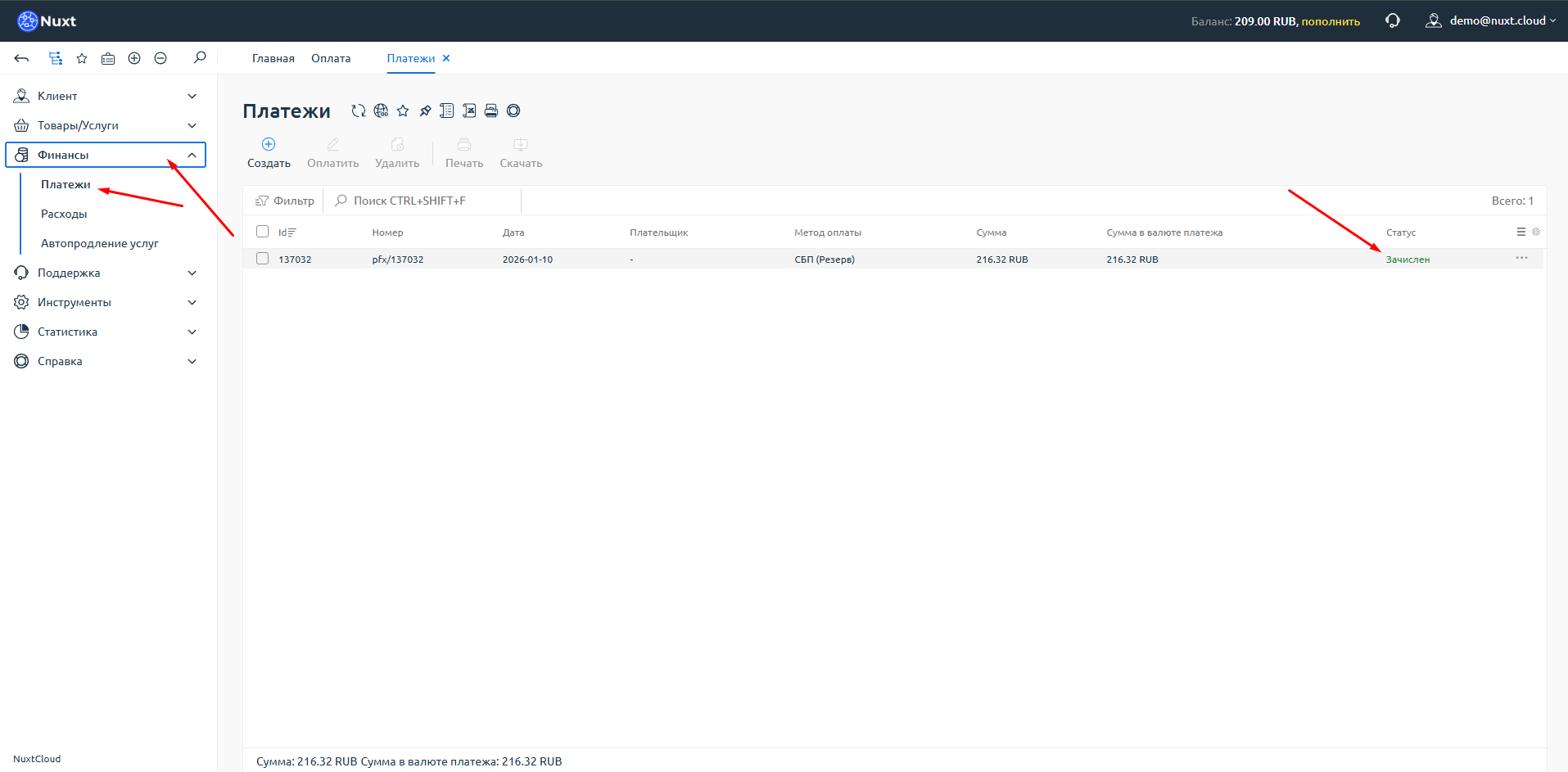
Done!
Your balance has been successfully topped up! You can now order services.