
Server VNC console
The VNC console shows the server screen as if you were sitting in front of it with a monitor and keyboard. It does not depend on the network or SSH inside the system, so it saves the day when the server stops responding: a misconfigured firewall, broken network config, forgotten password or a system that fails to boot.
Step 1: Open the server list
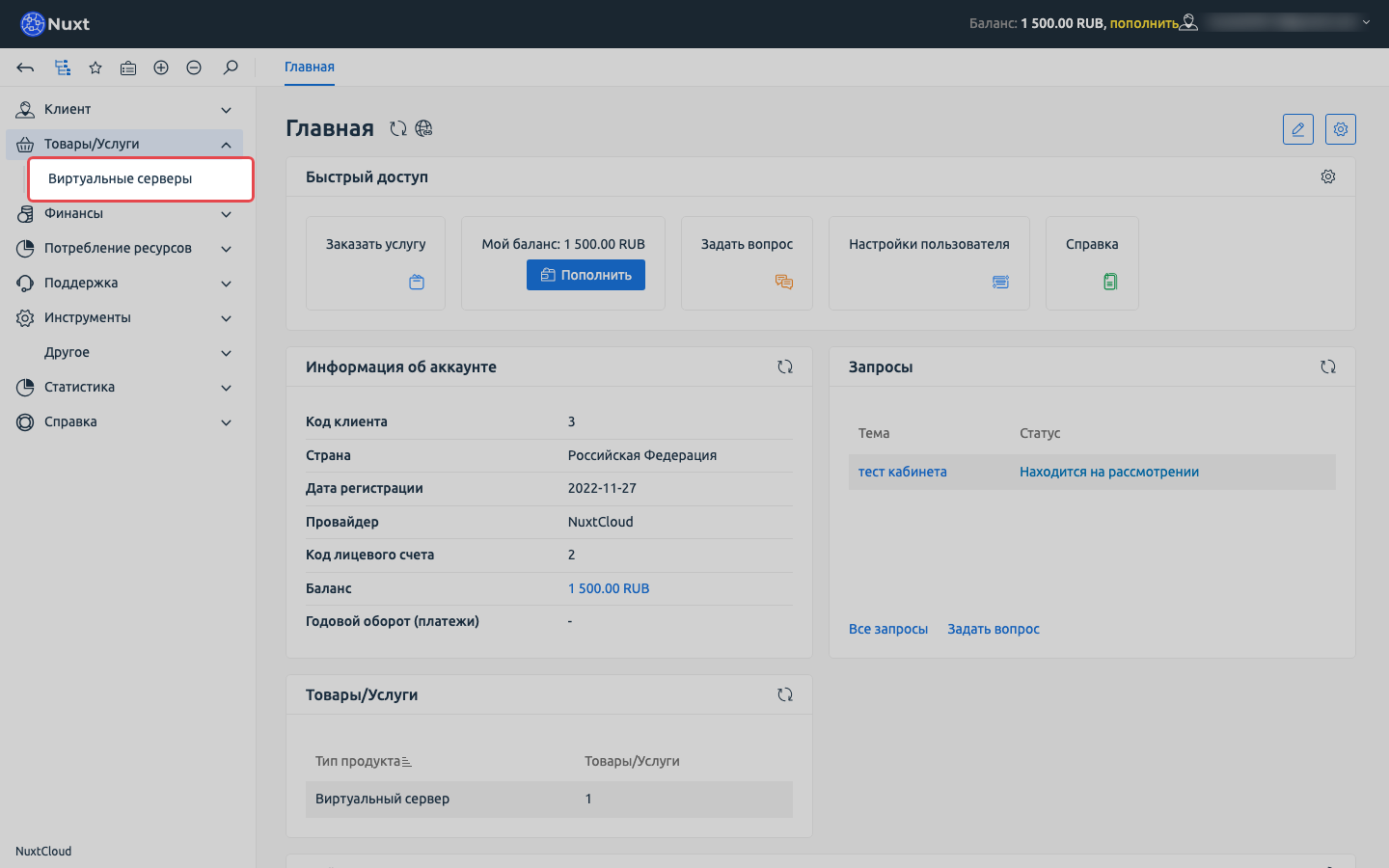
Sign in to the client area, expand Products/Services and choose Virtual servers.
Step 2: Select the server and click “VNC”
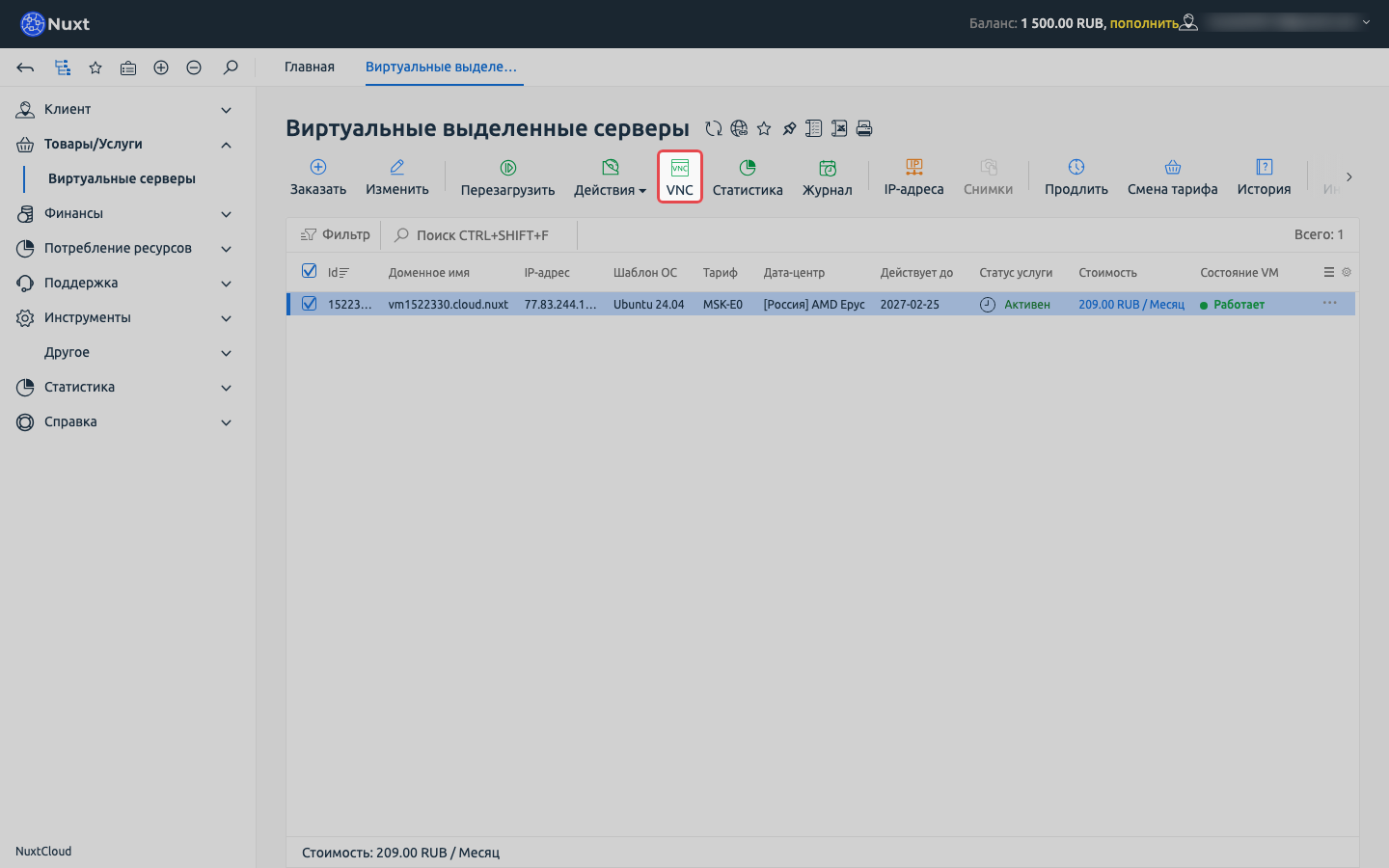
Tick the server and click VNC in the toolbar. The console opens in a new browser tab, so allow pop-ups for the site if your browser blocks them.
Step 3: Work in the console
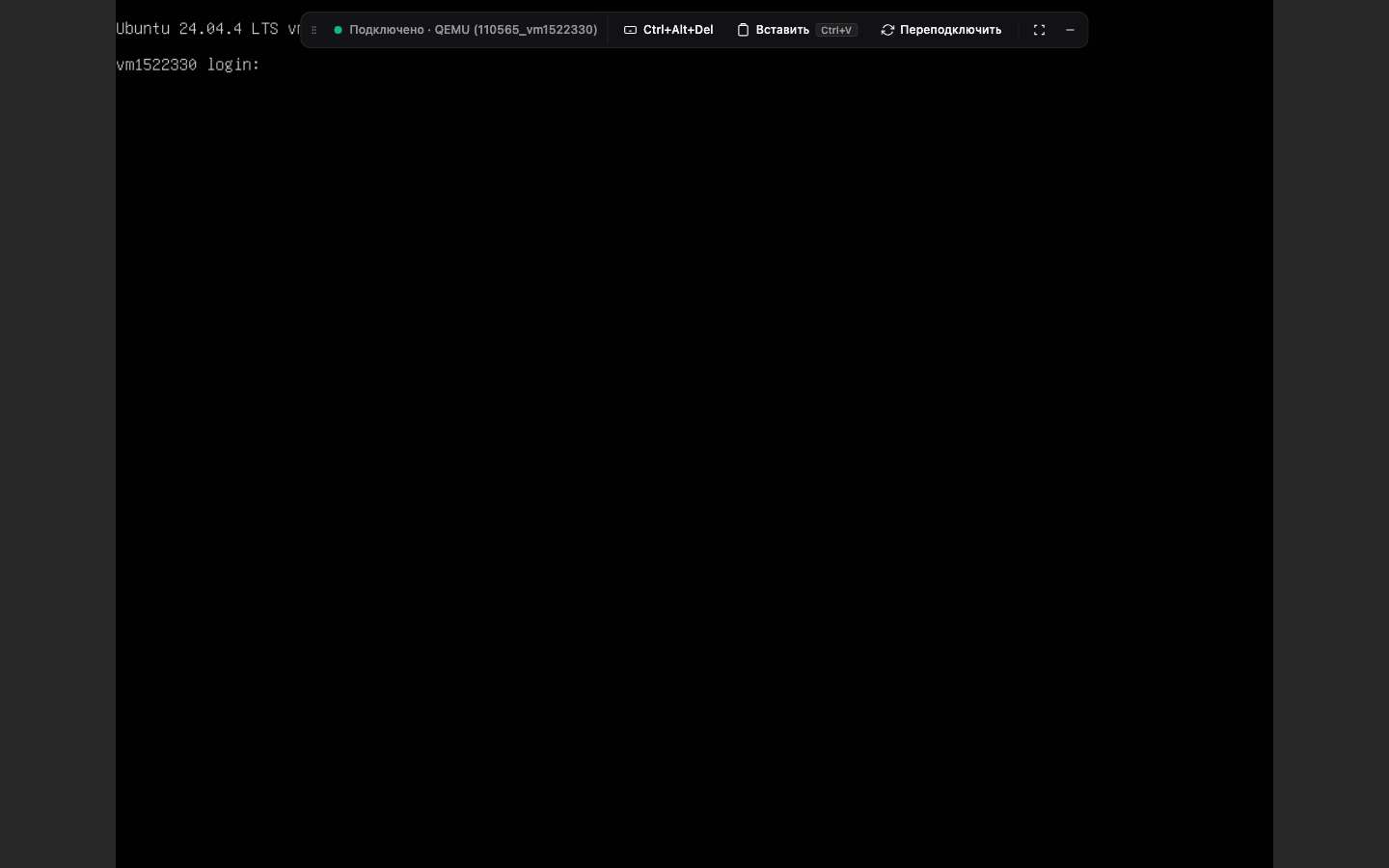
In a few seconds the server screen appears with a login prompt. Click the black area and type the login and password as in a regular terminal.
The toolbar at the top:
- Ctrl+Alt+Del sends the key combination to the server, handy for rebooting a frozen system;
- Paste inserts text from your clipboard, convenient for long passwords and commands;
- Reconnect reopens the console if the picture stops updating;
- the button on the right switches to full screen.
WARNING
The console keyboard layout is always English, and password characters are not shown while typing. That is expected.
If the server does not boot and the console shows an error screen, take a screenshot and attach it to a support ticket so we can sort it out faster.
That's it. Good luck!
The NuxtCloud team.